
Cloud Battery
Cloud Battery Guide
Table of Contents
Prerequisites
Cloud Battery works best when every device uses iCloud and has Cloud Battery enabled under Apps Using iCloud. The app stores synced battery information in your iCloud account, so you need available iCloud storage and an internet connection for sync to work reliably.
For automatic sync, sign in with the same Apple ID on your iPhone, iPad, Mac, Apple Watch, Apple TV, and Apple Vision Pro. You can also share individual devices with other iCloud users from devices you own.
Getting Started
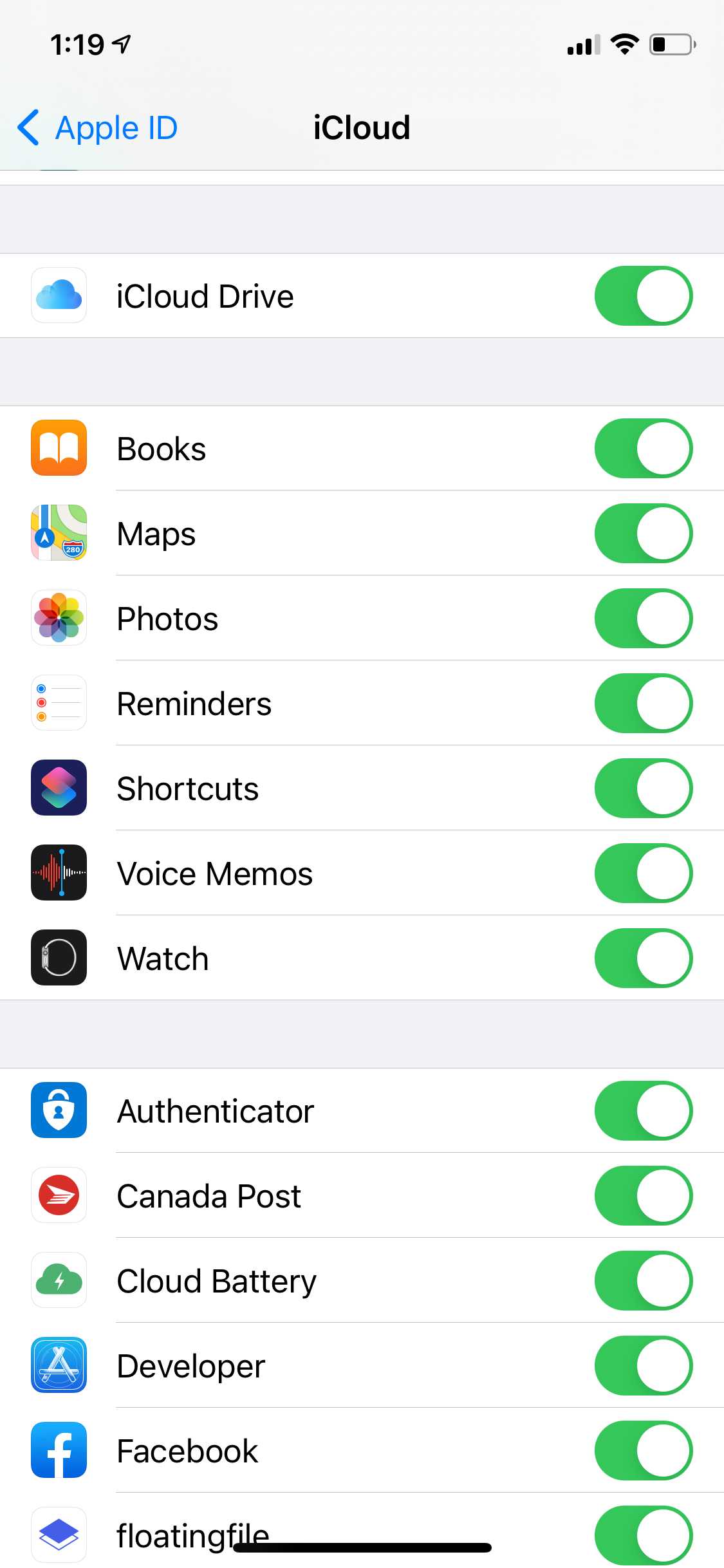
Start by checking iCloud settings. Make sure iCloud Drive is enabled, then confirm Cloud Battery is turned on under Apps Using iCloud.
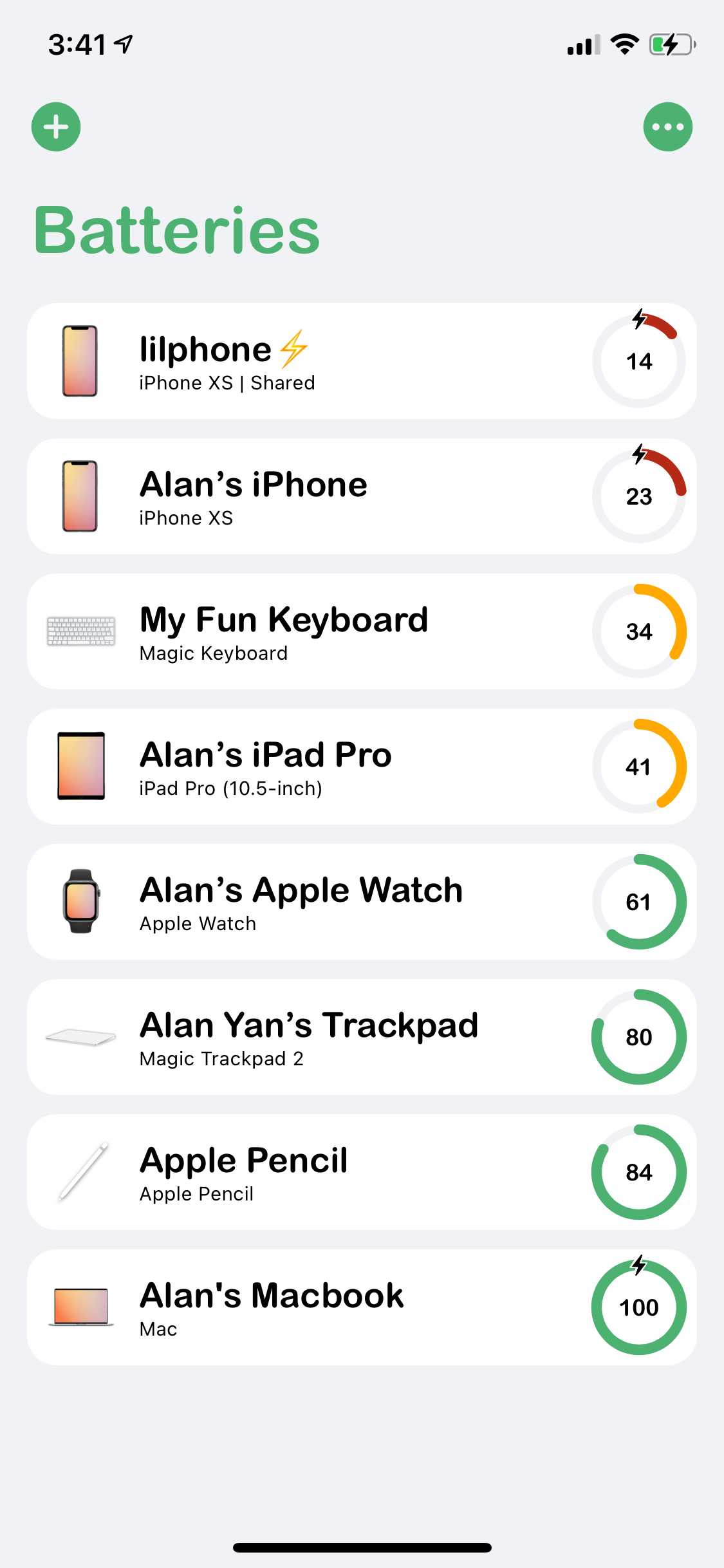
Open Cloud Battery and add the device you are using. If the platform can read nearby supported accessories, you can add those as well. Repeat this on your other Apple devices so they all appear in the same synced battery list.
Keep Cloud Battery installed and allowed to refresh in the background. iOS, iPadOS, watchOS, tvOS, visionOS, and macOS all control background refresh differently, so widgets, complications, and shortcuts can help keep the list fresh.
Notifications
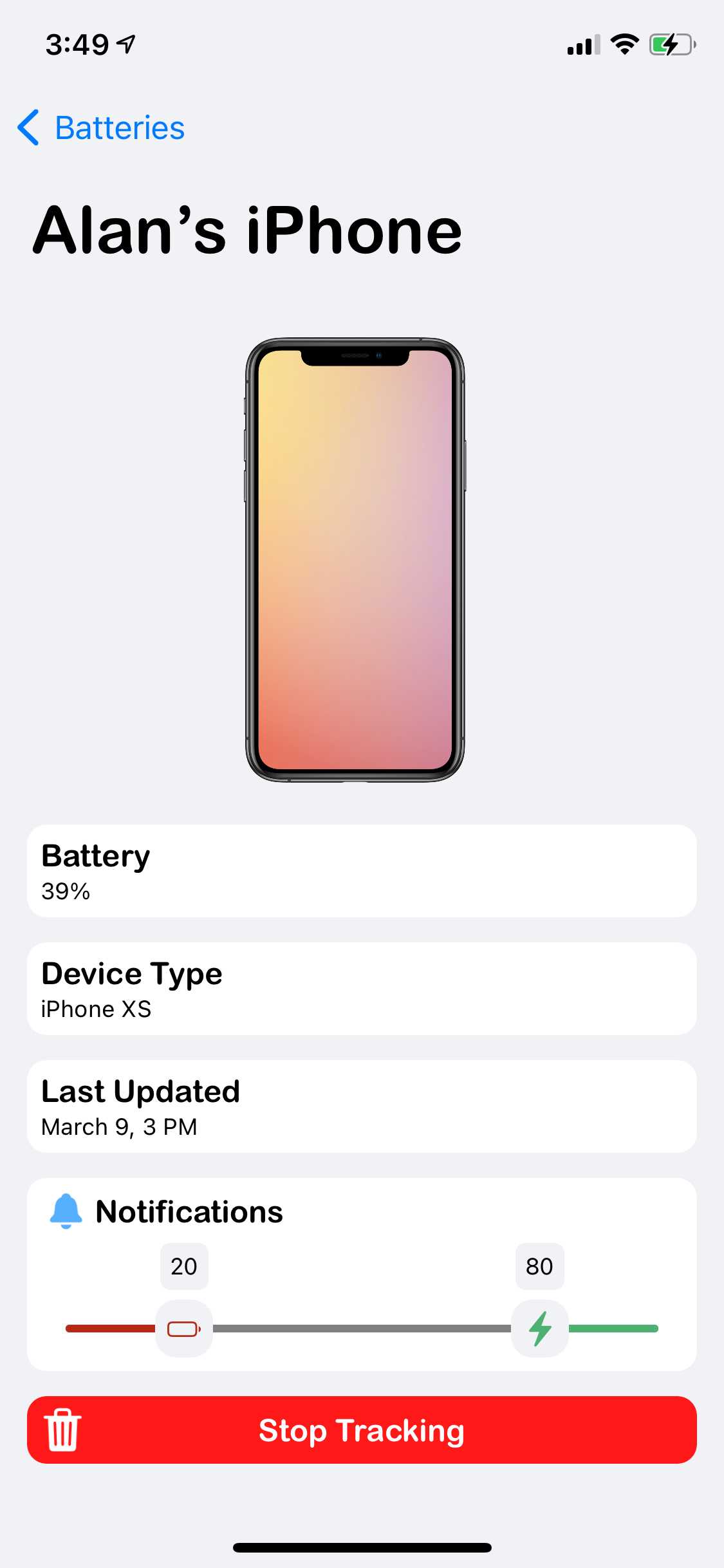
You can set low-battery and ready-to-unplug alerts for devices you own on supported platforms. Open a device detail screen, choose the battery thresholds you care about, and make sure notifications are enabled for Cloud Battery.
Alerts depend on iCloud updates arriving in time. If a device is in Low Power Mode, offline, recently restarted, or not being granted background refresh time, the notification can be delayed until the next successful sync.
Bluetooth Devices
Cloud Battery can add supported Bluetooth accessories when the current platform exposes battery information for them. On iPhone and iPad, that commonly means compatible BLE accessories such as Apple Pencil and other devices that expose battery data. On Mac, Cloud Battery Mac can also read AirPods connected to the Mac and compatible Bluetooth accessories that macOS exposes.
If an accessory does not appear, connect it in system Bluetooth settings, keep it nearby and awake, then try the add screen again. Some accessories simply do not expose battery data to third-party apps, so they cannot be added until the operating system makes that battery level available.
Sharing Devices
You can share battery status for devices you own with people you choose. Swipe on a device you own, open the sharing action, and send the iCloud sharing invitation.
People you share with can view that device's battery status, but they cannot manage notifications for a device they do not own. If an invitation link does not open Cloud Battery from another app's browser, open the link in Safari.
App Shortcuts and Siri
Cloud Battery includes App Shortcuts and Siri actions for checking battery levels and refreshing the synced list. You can ask for a battery level, find a device by name, or sync battery levels from Shortcuts.
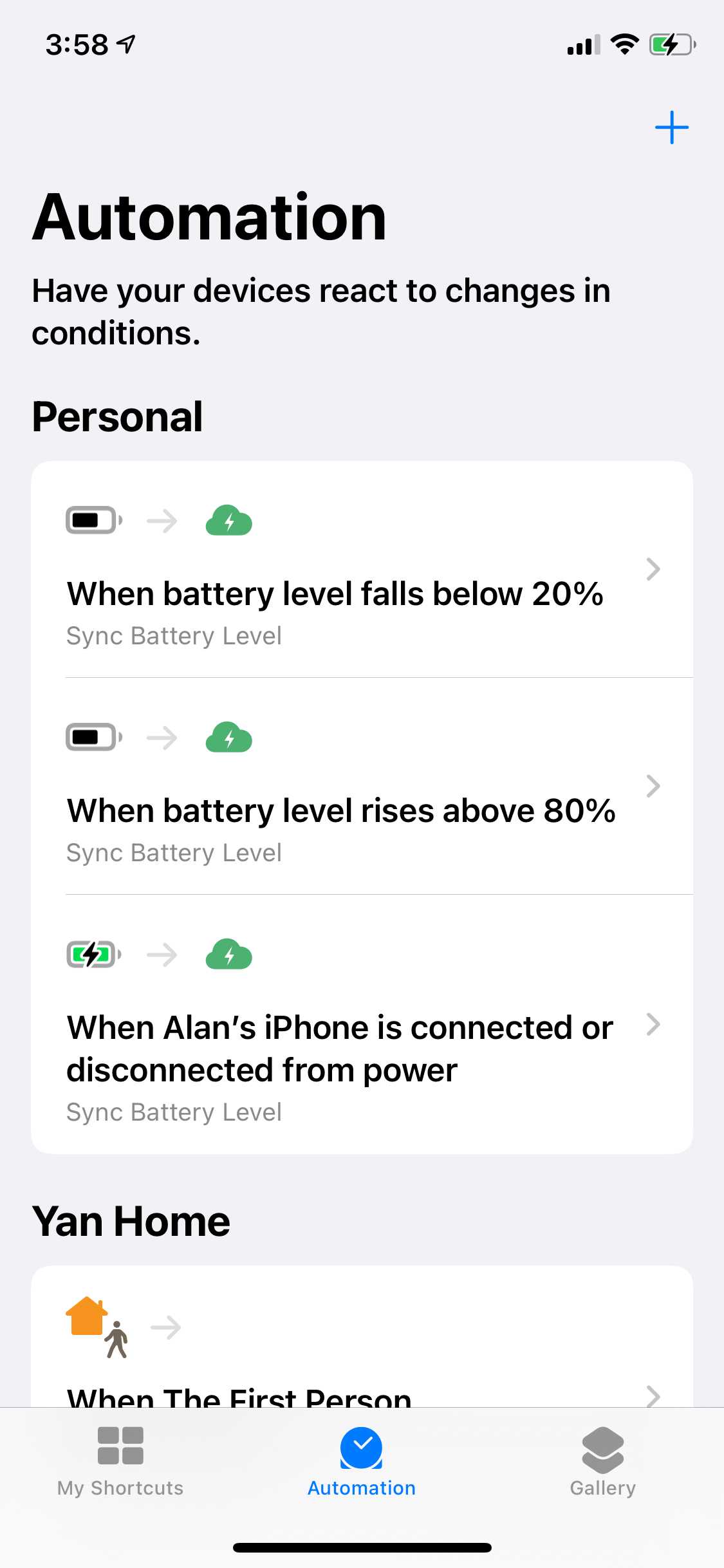
Automations are useful for events that already matter to battery status, such as connecting or disconnecting from power, falling below a low threshold, or rising above a charge threshold. Add the Cloud Battery sync action to those automations to give the app another chance to refresh right when the value matters.
You can also build shortcuts that check one device before taking another action, such as asking whether your Mac is above a certain percentage before controlling a smart plug.
Widgets and Complications
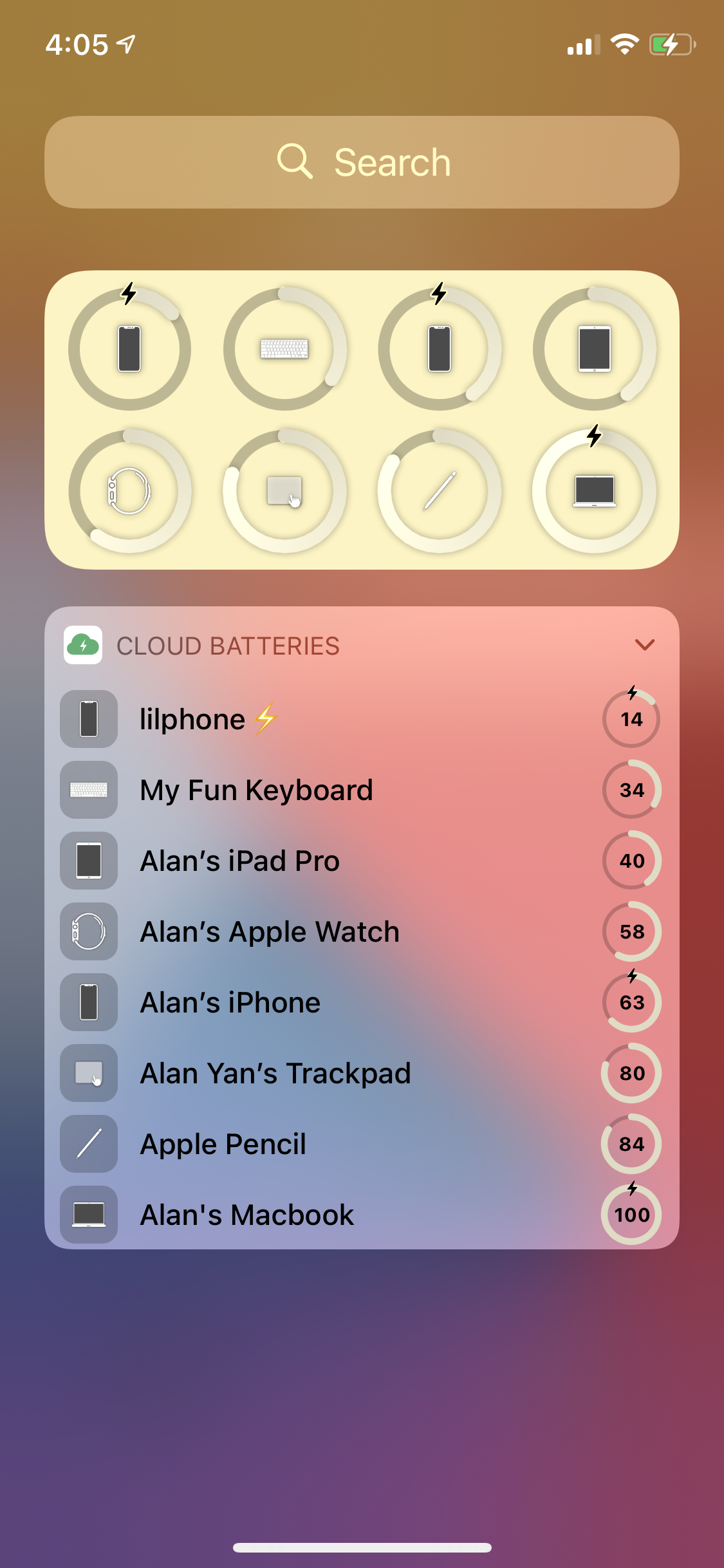
Widgets are one of the best ways to keep Cloud Battery visible. Cloud Battery includes Home Screen, Lock Screen, Mac, and Apple Vision Pro widgets, plus Apple Watch complications.
Home Screen and Mac widgets can show selected devices, sort and filter the list, hide stale devices, show names, and choose whether the main battery display uses the device image or the percent. Lock Screen widgets and Apple Watch complications are designed for faster glances.
Viewing Everywhere
After your devices sync through iCloud, Cloud Battery can show that same battery list across supported Apple platforms. Apple TV is useful as a shared-room battery board, while Apple Vision Pro includes spatial widgets such as Battery Glance and Battery Board.
Apple TV and Apple Vision Pro work best after at least one iPhone, iPad, or Mac has already added and synced devices.
Customization
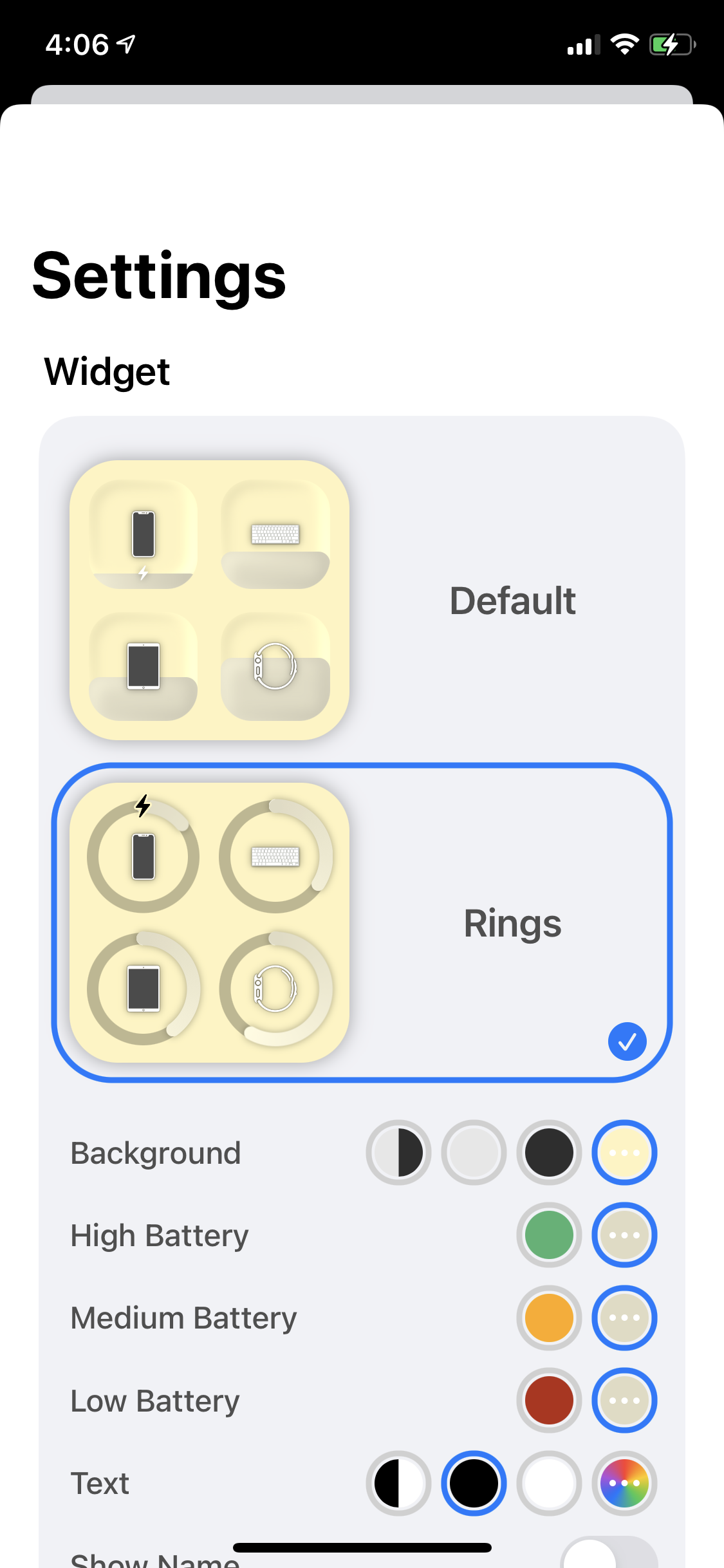
Supporters can customize app and widget colors and unlock the ring widget style. The default widget style stays simple, while the ring style and deeper color controls are there for people who want a more personalized battery dashboard.
If something is not working, use Report a Bug in Cloud Battery settings. On iPhone, you can also shake to start a bug report.